My Library overview
Open your My Library from the sidebar navigation by select the Books icon.
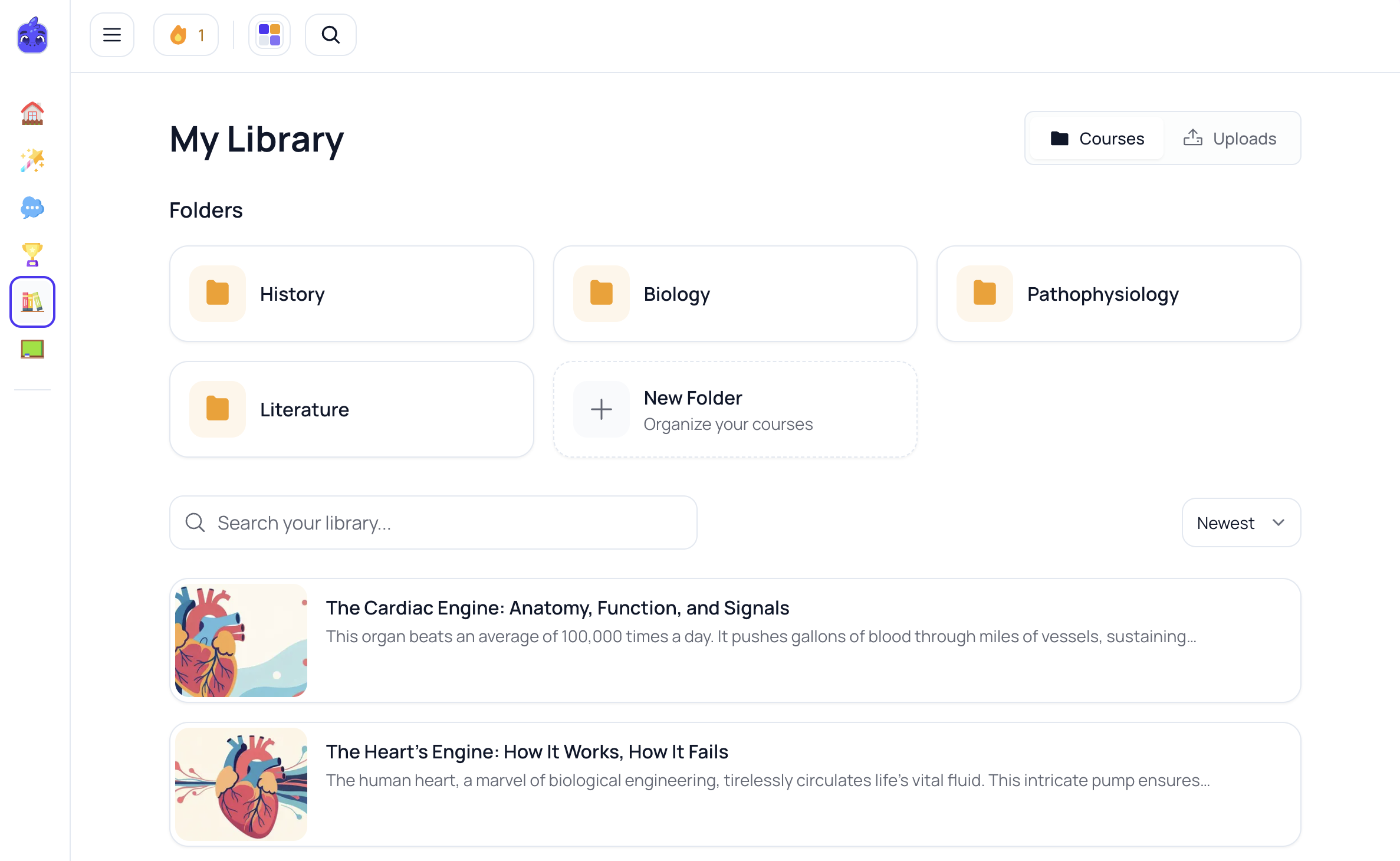
You’ll see:
- Folders (top): your folders shown as cards
- Courses (below): your Courses (newest first by default)
- Search & filters: tools to find specific Courses quickly
From your Library, you can:
- View all your Courses at a glance
- Search by Course name
- Sort by date or A–Z
- Filter by team (if you’re in a team)
- Create folders
- Move Courses into folders (including drag and drop)
Courses in your Library
Each Course card includes:
- Cover image and title
- Description (if you’ve added one)
Course actions (⋮)
Select the three dots (⋮) on a Course to:
- Edit: update questions, flashcards, notes, and more
- Duplicate: make a copy of the Course
- Move to folder: move it into a folder (or between folders)
- Delete: permanently remove the Course
Drag and drop
If you have folders, you can drag a Course onto a folder in the sidebar navigation to move it instantly.
Create a folder
- Go to Library
- In Folders, select + New Folder
- Name your folder (e.g. “Biology exam prep”, “Week 2”)
- Select Create FolderTip: You can also create folders from the sidebar using the + next to Folders.
Add Courses to a folder
Method 1: From the menu
- Find the Course in your Library
- Select ⋮
- Choose Move to folder
- Pick a folder (or create a new one)
Method 2: Drag and drop
- Click and hold a Course card
- Drag it onto a folder in the sidebar
- Release to drop it in
Heads up: A Course can only be in one folder at a time.
View and manage a folder
Select a folder to open it. From there you can:
- See all Courses in the folder
- Remove Courses (they return to your main Library)
- Rename the folder
- Delete the folder
- Study across everything inside the folder
Folder study modes
Folders aren’t just for organizing, they also let you study multiple Courses together.
Play all quizzes
Test yourself using questions pulled from every Course in the folder.
- Open the folder
- Select ⋮ next to the folder name
- Choose Play Quiz
- Answer questions from all Courses in that folder
Good for: final exam prep, full-topic review, practising across multiple units.
Study all flashcards
Review flashcards from every Course as one combined deck.
- Open the folder
- Select ⋮
- Choose Study Flashcards
- Cards from all Courses are mixed together
Flashcard modes:
- Standard: go at your own pace
- Spaced Repetition: focus on the cards you find hardest
- Shuffle: fully random order
Good for: cramming, daily review, linking concepts across topics.
Rename or delete a folder
Rename a folder
- Open the folder
- Select the More icon at the top of the page.
- Enter a new name
- Select Save
Delete a folder
- Open the folder
- Select Delete
- Confirm
Important: Deleting a folder does not delete the Courses inside. They return to your main Library.
Search, sort, and filters
Use the search bar to find Courses by title. You can also:
- Sort: Newest, Oldest, A–Z, Z–A
- Filter by team: see only your Courses or your team’s (if available)
Pro tips
- Create an exam prep folder and use Play Quiz to test everything at once
- Make a weekly review folder for each week’s materials
- Keep subject folders (Biology, Chemistry, etc.) for focused study
- Use an archive folder to tidy up without deleting anything
What next?
- Create your first folder and organize your Courses
- Try Play Quiz in a folder for broader review
- Use Spaced Repetition across a full subject folder