Welcome to Quizgecko!
Whether you're a medical student facing an all-nighter or a law student wanting to get full marks in their next exam, Quizgecko makes it easy to generate quizzes and flashcards using AI. This guide will walk you through the basics of creating and using quizzes and flashcards, as well as introduce you to other features in Quizgecko.
Creating Your First Course
Whenever you generate on Quizgecko, you produce a complete Course personalized to your needs. In each Course you can find:
- Quizzes
- Flashcards
- Study notes
- Podcasts
- Mind maps
It's easy for you to create all this in just four simple steps:
- Sign up for free or log in to your Quizgecko account
- Choose your input type
- Customize your Course
- View and play Course
That's it!
Read on if you'd like a more detailed guide that takes you through step-by-step.
Step 1: Sign up or log in
Create a free Quizgecko account (or log in if you already have one). Then start your free 3-day trial and create custom Courses at no cost, so you can try Quizgecko on your own materials and see what it can generate.
Step 2: Choose your input type
Select Generate to start making your custom Course.
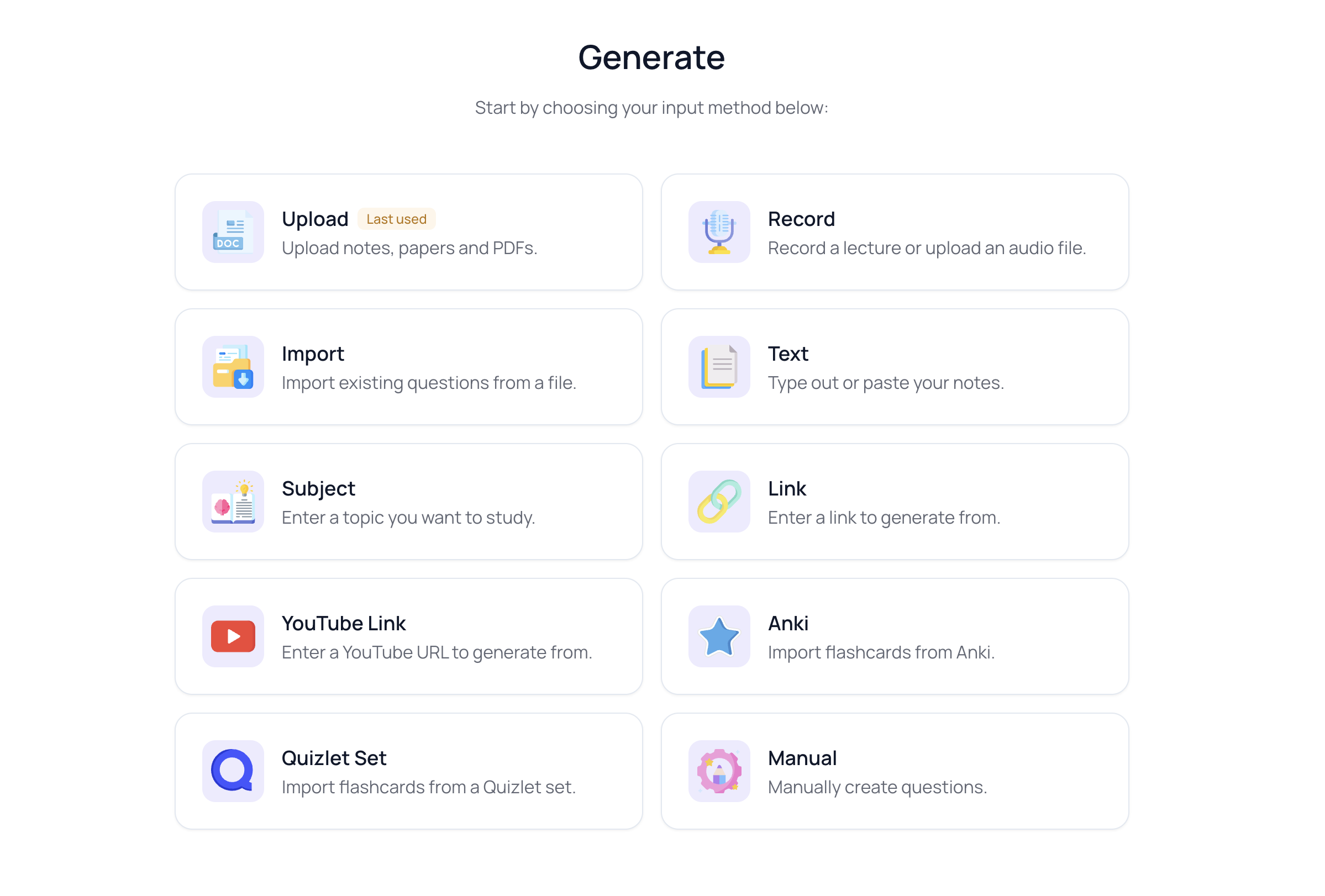
Choose your preferred information input from the following:
- **Upload ––**Upload documents such as notes, papers, PDFs, PPTs, photos with text in (e.g. your notes), or a text file to generate questions from.
Upload note: Available file counts and sizes depend on your current plan. The upload screen shows the limits for your account; see the plans page for the current comparison.
In addition, all uploads are subject to our Terms of Use, our Copyright Policy, and our Acceptable Usage Policy. We strongly recommend that you do not upload any documents that contain personal, private, or confidential information.
- Record— Record or upload audio, such as lectures or verbal notes
- Text— Type out or paste your notes.
- YouTube link— Enter a YouTube URL.
**YouTube Note:**YouTube videos will need to have spoken content and also be available for public view.
- Subject— Enter a topic you want to study. This can be general, or specific.
- Import— Import existing questions from a file.
Import note: The import screen shows the current question limit before you upload a file.
- Link— Generate questions from any public webpage.
- Quizlet Set— Import flashcards from a Quizlet set.
- Anki— Import flashcards from Anki.
- Manual— Manually enter your own questions and answers.
Create different quizzes from the same uploaded document
You can reuse an uploaded document without uploading it again:
- Open Generate and choose Upload.
- Select the document under Recent, or open My Uploads to find an older file.
- Choose different question types, difficulty, or Custom Instructions.
- Select Generate to create a separate Course and quiz from the same document.
To add more questions to an existing quiz instead, open the Course, select More, then Edit Course, open the quiz, and select Add more with AI.
Step 3: Customize your Course
Once you've inputted your material, then you can customize all elements of your Course.
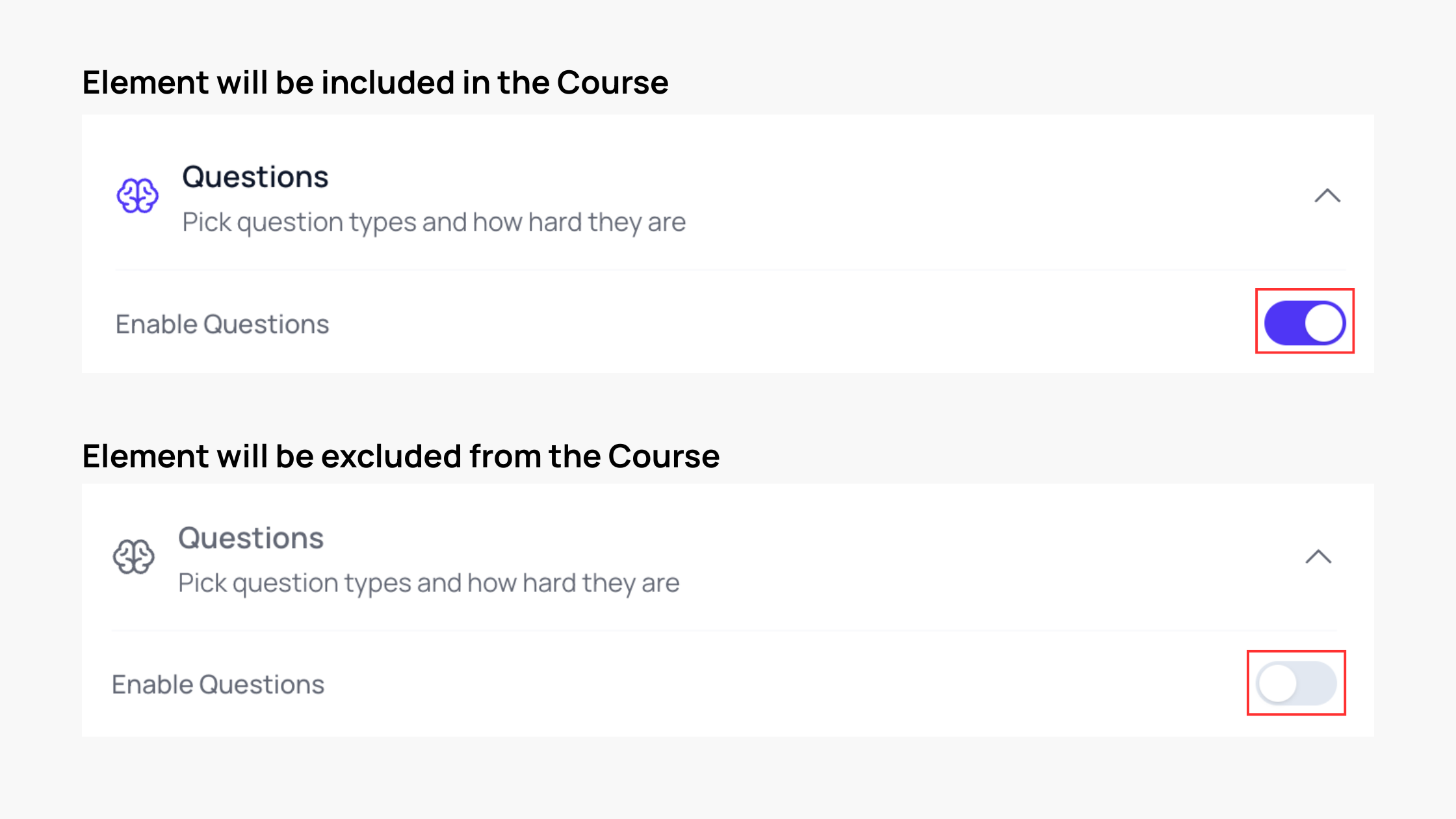
For any element of the Course you can choose to enable it or exclude it.
The Basics
If you leave this on Auto, your lesson language will match the language in your input.
Want to set it yourself? Choose a language here, you can change this during the next generation if you so wish. We support a wide range of languages.
Question Type
Select the question types you want from:
- Multiple Choice
- True/False
- Short Answer
- Fill in the Blank
- Matching
- Mixed
Difficulty
Choose the difficulty level to suit your needs from:
- Auto
- Easy
- Medium
- Hard
- Very Hard
- Mixed
Max Questions
Set a maximum number of questions for the generation. The current maximum is shown in the generator. Prefer to let Quizgecko decide? Choose Auto.
Heads up: if your source text doesn’t have enough detail, you may get fewer questions than your limit.
Flashcards
Choose the card style from:
- Term & Definition — Classic flashcard format with terms on front
- Question & Answer — Question on front, answer on back
- Fill in the Blank — Sentences with blanks to complete
Study Notes
Choose your preferred writing style:
- Bullet Points — Scannable lists, concise key points
- Balanced — Mix of lists and prose
- Narrative — Flowing text with context
Podcast
Pick the length and conversation style.
Duration
- Short — 5-10 minute overview
- Medium — 10-20 minute deep dive
- Long — 20-30 minute comprehensive
Style
- Lecture — Educational, instructor led style
- Conversational — Casual, engaging discussion
- Interview — Q&A format with multiple voices
Mind Map
Choose how many layers of detail to show.
Complexity
- Overview — 2-3 levels, high-level concepts
- Standard — 3-4 levels, balanced detail
- Detailed — 4-5 levels, comprehensive
Extra Details
Add your own instructions to guide the AI. Use Custom Instructions to guide the AI further, such as asking it to match the question phrasing and style to your exam board.
Step 4: Start learning
Press Generate and within a minute or two you'll have generated your first Course. Congratulations!
Header
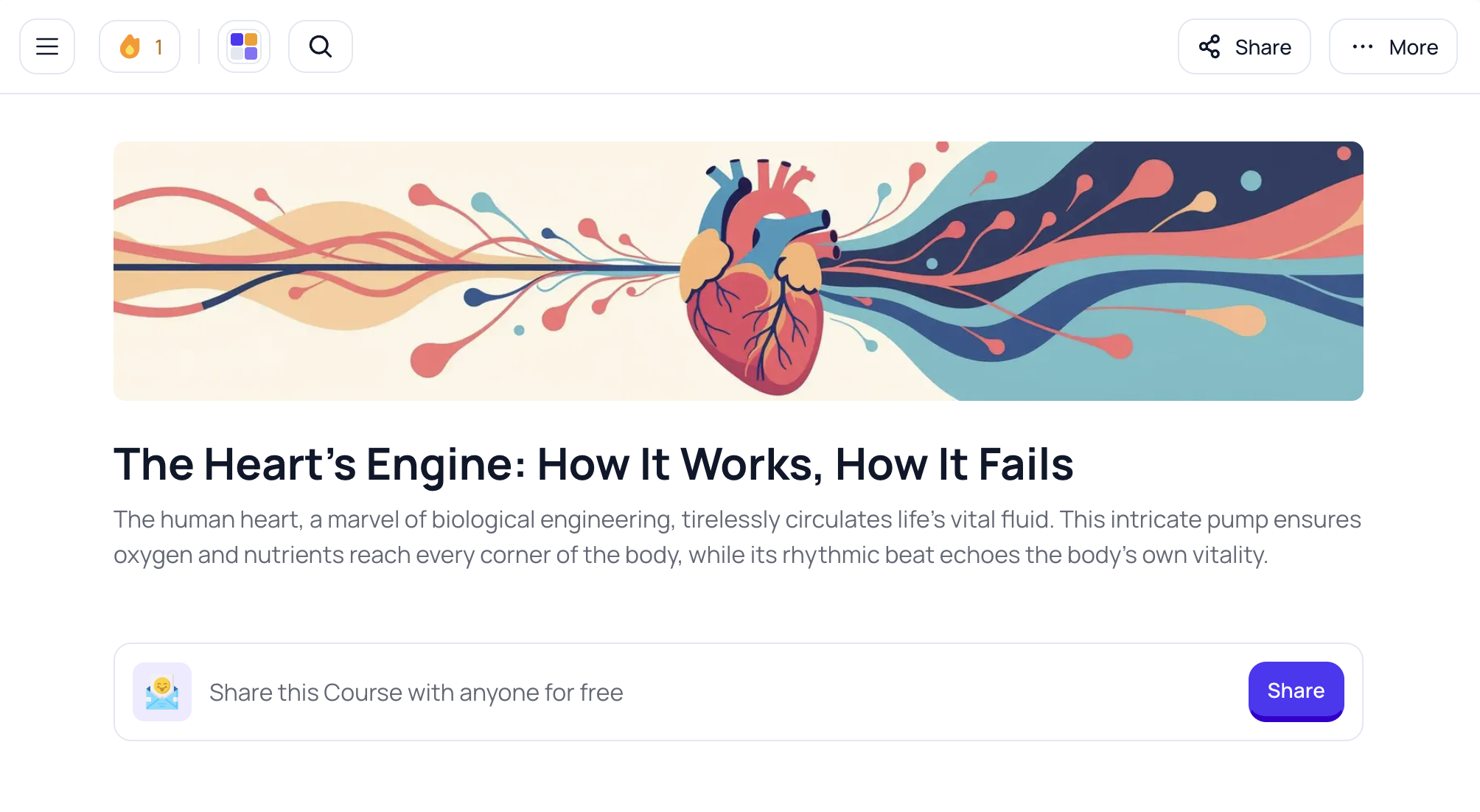
At the top you'll find a Course cover image, title, and description. You can select the Theme (four colored squares) icon to change the color scheme of the whole platform, including your quiz and flashcards. There are fun color themes to choose from, but also an Accessible color theme, which is designed for higher accessibility standards and a Dark mode.
You can share your Course for free with anyone else.
Select More to choose to:
- Embed Course
- Edit Course
- Add to Folder
- Export Questions
- Duplicate Course
- My Progress
- Delete Course
Practice
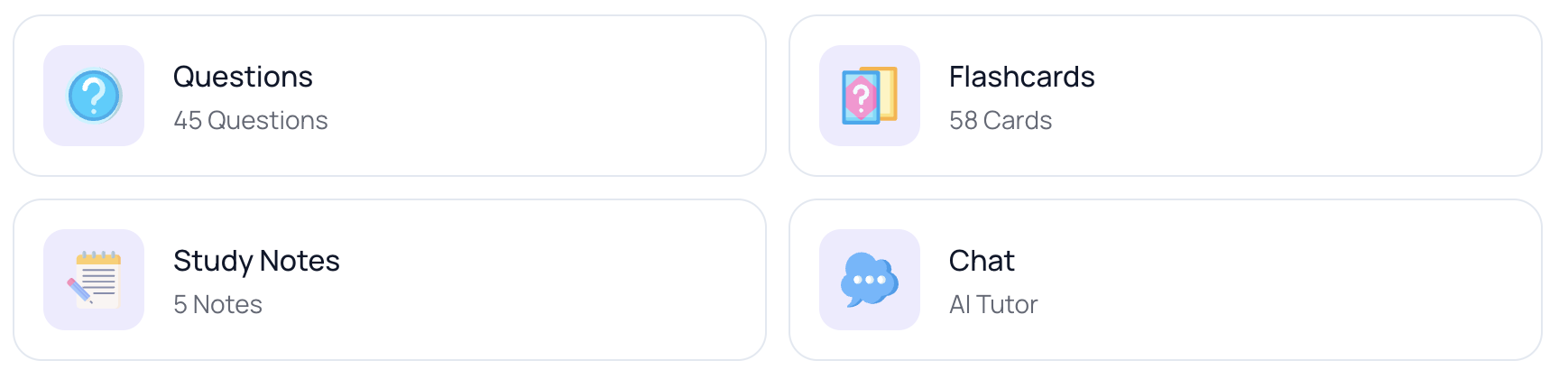
Use Practice modes to review everything in one place and see if you're exam ready.
- Questions: run a practice test
- Flashcards: work through your full set
- Study Notes: read all your notes
- Chat: talk through your materials with the AI Tutor.
Modules
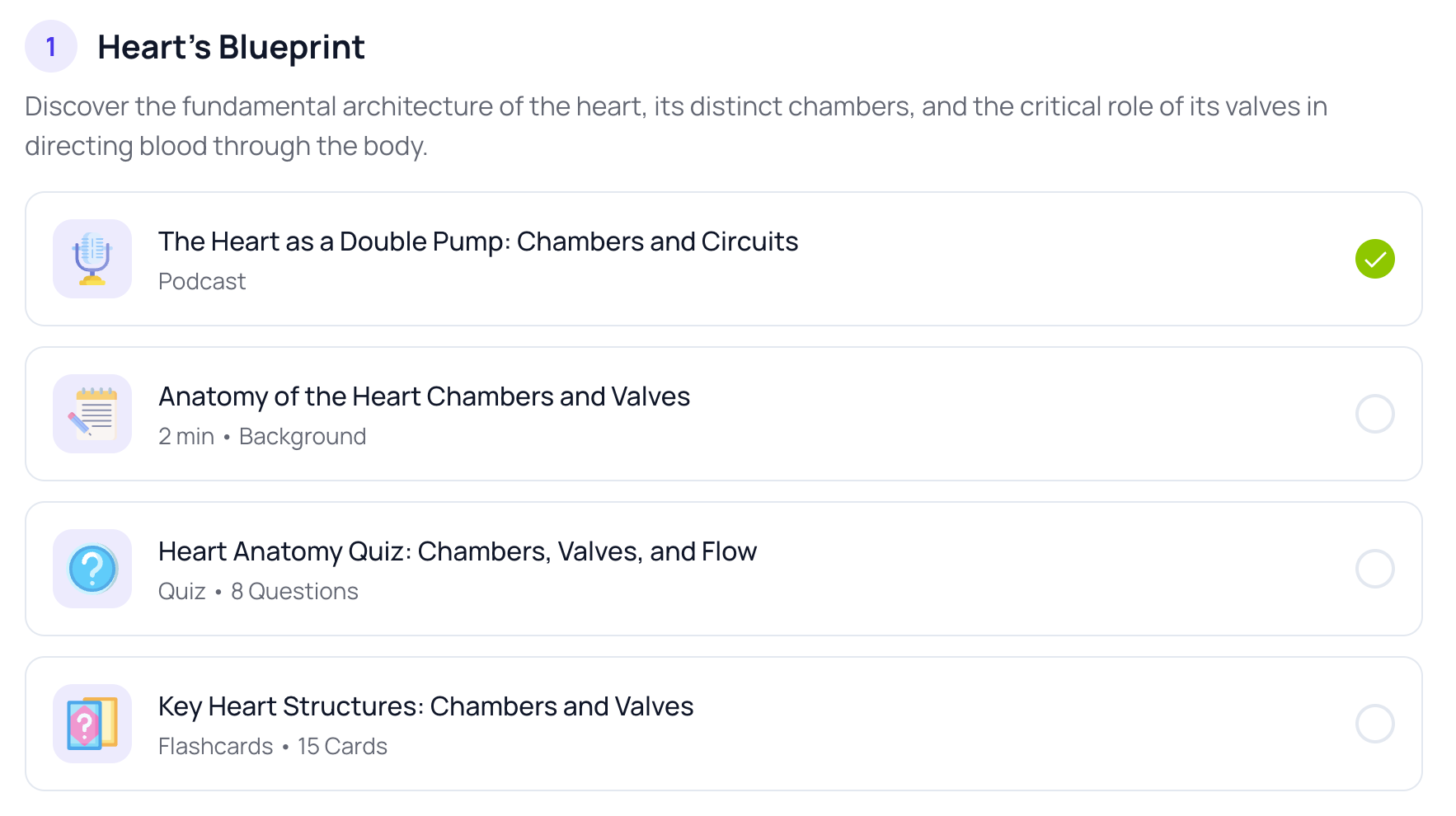
If you're looking to learn and understand the material more thoroughly, then work your way through the module.
Podcasts generate separately from your main Course and use their own allowance. The product shows your remaining allowance, and the plans page has the current comparison.
Press Play to start generating and then give it a moment to create the full episode.
Materials
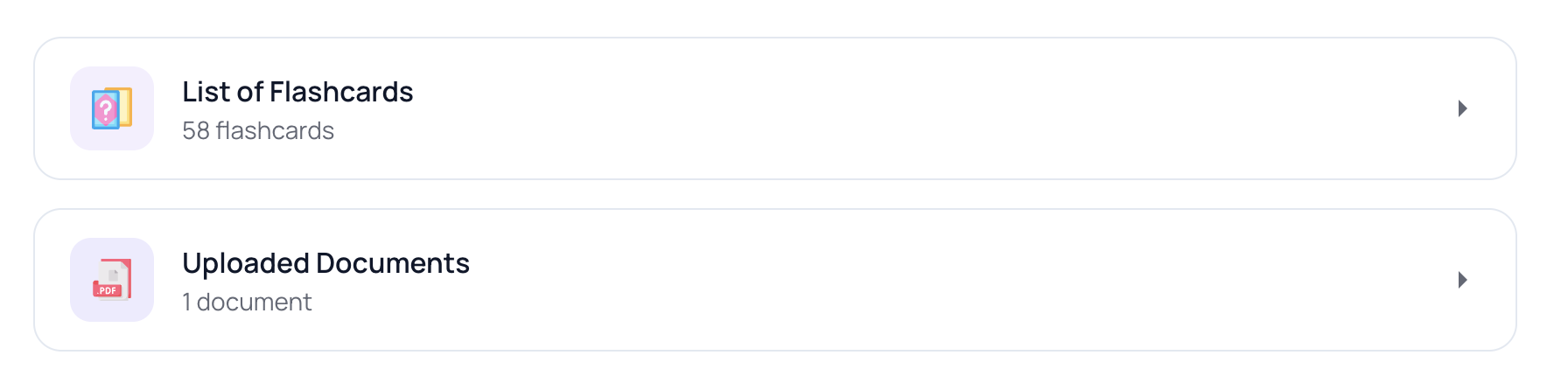
Just want flashcards or questions in a plain text format? Find them at the bottom of the Course page.
That's it!
And you’re done! You’ve created your first Quizgecko Course and everything you need to study is now in one place: quizzes, flashcards, study notes, podcasts, and mind maps.
From here, it’s all about making it yours. Tweak the settings, edit anything that doesn’t look quite right, and regenerate whenever you want a fresh set of questions. Then jump into Practice to test yourself, review fast with flashcards, or talk it through in Chat with your AI Tutor.
Ready for round two? Drop in your next set of notes and build another Course in minutes and you’ll build your confidence towards exam-ready in no time.
What next?
- Download our app to create and play your Courses on mobile
- Create folders to organize your Courses
- Edit your Course to add images, change questions and more.